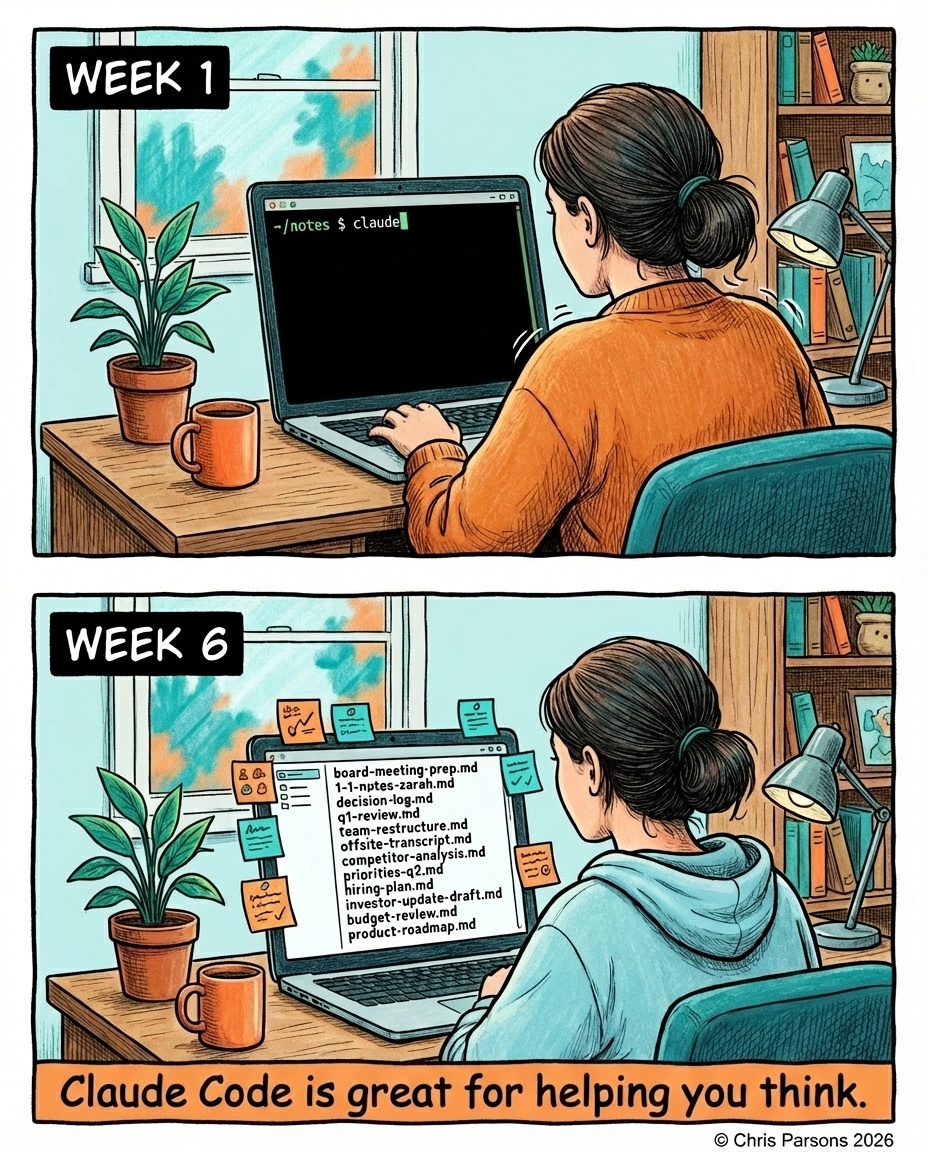
What if the AI already knew what you were working on? What if it remembered what you decided last week, what your board presentation covers, what your team structure looks like, because it had read your notes?
That is what happens when you put Claude Code in a folder. You do not need to know how to code, and you do not need a plan for what goes in the folder. You just need something on your mind, and about ten minutes.
Step 1: Install Claude Code
The technical bit: open your terminal. On a Mac, search for “Terminal” in Spotlight; on Windows, search for “PowerShell”. This is the text-based interface where you type commands. Run one line.1 You will need a Claude subscription or Anthropic API account.2
curl -fsSL https://claude.ai/install.sh | bash
This downloads and runs the Claude Code installer. It will not touch anything else on your machine.
If this already feels like too much and you have access to a Claude Max plan, use Cowork3 instead, which is in research preview at the moment. It will let you work in a local folder of files without touching the terminal. Claude Code has some powerful features that Cowork does not have yet, and they could well be useful as your knowledge base grows, but Cowork will continue to improve and is a perfectly good starting point.
Step 2: Create a folder and give Claude some instructions
Paste these commands into the terminal. This will create a folder in your home directory called “notes”. You can also just create a folder called “notes” in your home directory using Finder on a Mac or Explorer on Windows, if you prefer.
mkdir ~/notes
cd ~/notes
Now create a file called CLAUDE.md in the folder. This is a set of standing instructions that Claude reads at the start of every session. Open it in TextEdit on a Mac or Notepad on Windows and paste this in:
# My Notes

This is my personal notes folder. I use it to think things through
and keep track of what I'm working on.

When I share thoughts, you must save them as a note with a descriptive
filename, one thought at a time.  Use everything in this folder as context when
I ask questions or add more thoughts.  Lean towards asking me thoughtful
questions one at a time to help me think.  Pay attention to how I like my notes
organised and update these rules to match.
You can adjust this slightly if you want, and it is not strictly needed, but will help Claude get what you intend to do slightly faster.
Now run claude and hit enter. Claude reads the CLAUDE.md and knows what this folder is for from the very first conversation. You’ll get a prompt which you can use just like ChatGPT, except with much more power.
Step 3: Talk about something real
You do not need to set up a big system to get going. Start with whatever is actually on your mind. Say you have a meeting tomorrow you have not prepared for, for which you are mulling over a decision about team structure. You need to reply to an email and you are not sure what to say.
Tell Claude about it. Something like:
“I have got a board meeting next week about AI investment. We have spent about fifty thousand on tools and training this year and I need to justify the spend. Here is what I know so far…”
One tip: Claude Code is a text interface, so you type a lot. A dictation tool like Wispr Flow4 makes this feel much more like a conversation. Talk through your thinking and let it transcribe for you.
Claude will help you think it through, ask questions, and suggest angles you had not considered. When you are done, ask it to save the conversation as a note in your folder.
Step 4: Come back tomorrow
Next time you run Claude Code from the same folder, it reads everything in there. Just open up your terminal program again, type cd ~/notes and claude again. That note from yesterday is now context for today’s conversation. You do not need to re-explain who you are, what you are working on, or what you decided last time. It picks up where you left off.
Each note you add is context for every future conversation. As the folder grows, Claude reads what it needs rather than loading everything at once, so you do not need to worry about it slowing down.
Step 5: Browse your notes with Obsidian
If you want a visual companion for your notes folder, download Obsidian5 and point it at the same ~/notes directory. Obsidian renders markdown files with a clean interface, and since Claude Code works in plain text, everything stays in sync. Write rough notes in Obsidian, switch to the terminal and ask Claude to help you make sense of them.
Why this works
After a few weeks you can ask things like “what have I been working on this month?” or “what did I decide about the hiring plan?” and get a real answer drawn from your own notes. The questions that get interesting are the ones that connect things across weeks: “I had a conversation about team structure last month and a similar one yesterday, what changed in my thinking?” or “given everything I have noted about the Q1 figures, what should I actually say to the board?” Every note makes the whole thing richer.
Andrej Karpathy, former head of AI at Tesla, described this as the “LLM wiki” pattern6: instead of the AI re-deriving knowledge from scratch every time you ask a question, it works from a persistent, compounding set of notes. The knowledge is compiled once and then kept current.
Everything is plain text in a folder you own. You can open any file, read it, move it, back it up. Nothing is locked inside a proprietary format.7
What comes next
The folder starts with notes, but it does not stop there. In the future I will cover how to drop meeting transcripts into the folder and extract something useful from them. After that, articles, links, and other sources that flow through your working life.
For now, just start with the empty folder and whatever is on your mind today.
-
The native installer handles everything. No need to install Node.js or any other dependencies. Works on macOS, Linux, and Windows. See the full setup guide for all installation options including the desktop app, VS Code extension, and web version. ↩
-
Claude Code documentation: a Claude Pro ($20/month), Max ($100/month), or Team subscription includes Claude Code access, or you can use API billing on the Anthropic Console. Pro is enough to get started. ↩
-
Claude Cowork: an autonomous agent in the Claude desktop app that can work directly with files on your computer. Currently in research preview and available on Max plans. ↩
-
Wispr Flow: dictation that works everywhere on your Mac. I use it constantly when working with Claude Code (referral link, but I would recommend it regardless). ↩
-
Obsidian: free to download and use. The paid Sync feature is optional; for this setup you do not need it. ↩
-
Andrej Karpathy’s llm-wiki pattern: instead of retrieving from raw documents at query time, the LLM incrementally builds and maintains a persistent wiki. The knowledge is compiled once and kept current, not re-derived on every query. ↩
-
Anthropic does not use your conversations or files to train models on paid plans. See their data privacy policy for details. If you work in a regulated industry, check with your compliance team before putting sensitive data in any AI tool. ↩