Your laptop is a terrible development environment. It sleeps when you close the lid, loses state when you reboot, and chains you to a single device. The solution is obvious once you see it: run your development environment on a cheap cloud server and connect from whatever device is in front of you.
I spent a week with OpenClaw, the always-on Claude agent that promised to solve this problem, but it did not deliver. So I uninstalled it and set up Claude Code on a VPS instead. The setup costs less than a coffee subscription, and now I connect from my laptop at my desk, from my phone on the train, from an iPad at a conference. The server is the constant, and my devices are just windows into it. Whether that is a superpower or a recipe for burnout depends on your discipline.
What I Use It For
After a week, here is what works for me:
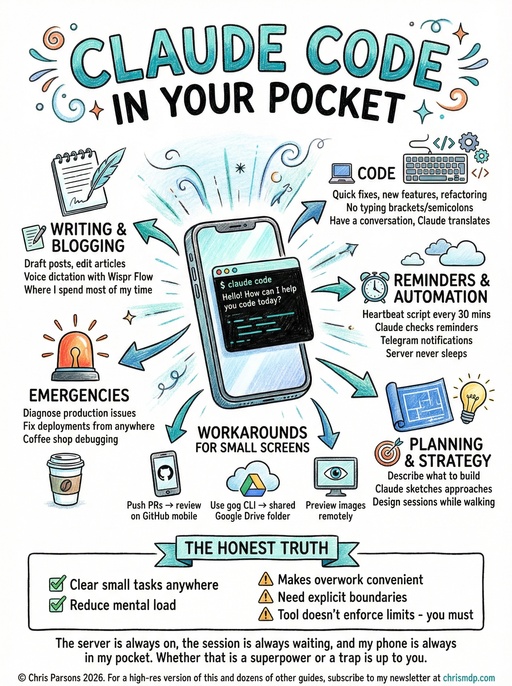
Writing and blogging is where I spend most of my time. Drafting posts, editing articles, working through ideas. Voice dictation using Wispr Flow works even better than typing.1
Code of all kinds: quick fixes, new features, refactoring. I have tried mobile coding before and every attempt failed because typing code on a phone is miserable. Brackets, semicolons, precise indentation, all painful on a touchscreen. Claude Code inverts this. You are having a conversation, and Claude writes the code.
Reminders and automation. I have a heartbeat script running on the server every thirty minutes that spawns a small Claude Code prompt to check my reminders. I have a Max 20 subscription, so I can afford the tokens. When something needs attention, it pings me via Telegram. The server never sleeps, so the reminders work.
Planning and strategy. Describing what I want to build, having Claude sketch out approaches. I have had productive design sessions while travelling or walking.
Emergencies. Production issues do not wait for convenient timing. I can now diagnose and fix deployment issues from the queue at a coffee shop.
The small screen requires workarounds. When I need to read a diff properly, I push a PR and review it on GitHub’s mobile site. When I need to extract a document or preview an image, I use the gog CLI tool to post it to a shared Google Drive folder where I can grab it on my phone.2
The Setup
The full setup takes about an hour, broken into four stages: provision a VPS and create a user account, configure SSH keys and harden security, install Claude Code with sensible defaults, and finally set up Termius on your phone.
Choosing a VPS Provider
You need a basic Linux VPS with SSH access. Any provider works, but I recommend Hostinger for their competitive pricing and reliable uptime. When you set up your VPS, look for the application templates and search for “Claude Code”. Hostinger will pre-install Claude Code and Node.js for you, which saves time on the installation steps below. You will still need to handle security hardening and mobile access yourself. Look for Ubuntu 24.04 LTS (Long Term Support), at least 2GB RAM (4GB is more comfortable), and decent network connectivity. Most providers offer this for under £10 per month.3
Once you have your server, SSH in and start setting up your environment:
ssh root@your-server-ipBase System Setup
Start with a fresh Ubuntu 24.04 installation. Update everything and install the core packages you will need for development and terminal work.
sudo apt update && sudo apt upgrade -y
sudo apt install -y git curl jq tmux python3 python3-pip build-essential
Create a non-root user if your VPS provider gave you only root access. Working as root is asking for trouble, and Claude Code should run under a regular user account with sudo privileges when needed.
sudo adduser yourname
sudo usermod -aG sudo yourname
Switch to your new user:
su - yournameSet up your directory structure. I keep code repositories in ~/code, personal scripts in ~/bin, and let Claude Code manage its own configuration in ~/.claude. Create a logical structure that makes sense for how you work, and stick to it.
mkdir -p ~/code ~/bin ~/.local/bin ~/.configSSH Keys and Security
Copy your SSH public key to the server for passwordless login. This is essential for mobile access because typing passwords on a phone keyboard is miserable.
On your local machine, if you do not already have an SSH key:
ssh-keygen -t ed25519 -C "your-email@example.com"Copy the public key to your server:
ssh-copy-id yourname@your-server-ipYou can do the same from your phone. Termius is an SSH client for iOS and Android that handles keys properly. To generate a key in Termius, go to Keychain, tap the plus icon, select “Generate Key”, and give it a name. Then hold down on the key, tap “Share”, and “Export to Host” to push it to your VPS.
Once key-based auth works from both devices, consider disabling password authentication entirely. This makes your server significantly more secure against brute-force attacks:
sudo sed -i 's/#PasswordAuthentication yes/PasswordAuthentication no/' /etc/ssh/sshd_config
sudo sed -i 's/PasswordAuthentication yes/PasswordAuthentication no/' /etc/ssh/sshd_config
sudo systemctl restart ssh
Hardening Your Server
Your VPS is accessible to the entire internet, so take a few minutes to lock it down. Install fail2ban to automatically block IP addresses that attempt brute-force attacks:
sudo apt install -y fail2ban
sudo systemctl enable fail2ban
sudo systemctl start fail2ban
Enable the firewall and allow only SSH traffic:
sudo ufw allow 22
sudo ufw enable
These two steps block the most common attacks. If you plan to run web services on the same VPS, you can open additional ports later with ufw allow 80 and ufw allow 443.
tmux: Persistent Sessions
tmux is what makes mobile access practical. Without it, closing your SSH connection kills whatever you were running. With tmux, your session persists on the server. You can disconnect, reconnect hours later from a different device, and find everything exactly as you left it.
Create a configuration file that makes tmux pleasant to use:
cat > ~/.tmux.conf << 'EOF'
set -g mouse on
set -g default-terminal "tmux-256color"
setw -g mode-keys vi
set -g status-right "%H:%M"
EOF
Add this to your ~/.bashrc to automatically attach to tmux when you SSH in:
cat >> ~/.bashrc << 'EOF'

# Auto-attach to tmux
if command -v tmux &>/dev/null && [ -z "$TMUX" ]; then
    tmux attach -t main 2>/dev/null || tmux new -s main
fi
EOF
Now every SSH connection drops you straight into your persistent session.
Installing Claude Code
Claude Code requires Node.js. Install the LTS version:
curl -fsSL https://deb.nodesource.com/setup_lts.x | sudo -E bash -
sudo apt install -y nodejs
Then install Claude Code globally:
npm install -g @anthropic-ai/claude-codeNow authenticate Claude Code. You can either log in via the browser (easier if you have an Anthropic account with a Max subscription) or set an API key manually.
Option A: Browser login (recommended)
Run the login command on your VPS:
claude loginClaude Code will print a URL and a one-time code. It looks something like this:
To login, open this URL in your browser:
https://console.anthropic.com/oauth/authorize?...
Then enter this code: XXXX-XXXX
Copy that URL and open it in a browser on your phone or laptop. Sign in to your Anthropic account, paste the one-time code when prompted, and approve the connection. Back on your VPS terminal, Claude Code will detect the authorisation and confirm you are logged in.
Option B: API key
If you prefer to use an API key, create one at console.anthropic.com/settings/keys. Be aware that API access is pay-as-you-go and can get expensive quickly, especially with heavy use. A Max subscription (Option A) gives you a predictable monthly cost. To use an API key, set it as an environment variable on your VPS:
export ANTHROPIC_API_KEY="sk-ant-..."Add this line to your ~/.bashrc so it persists across sessions:
echo 'export ANTHROPIC_API_KEY="sk-ant-..."' >> ~/.bashrcRun claude to verify everything connects. Either way, authentication only needs doing once.
Connecting from Your Phone
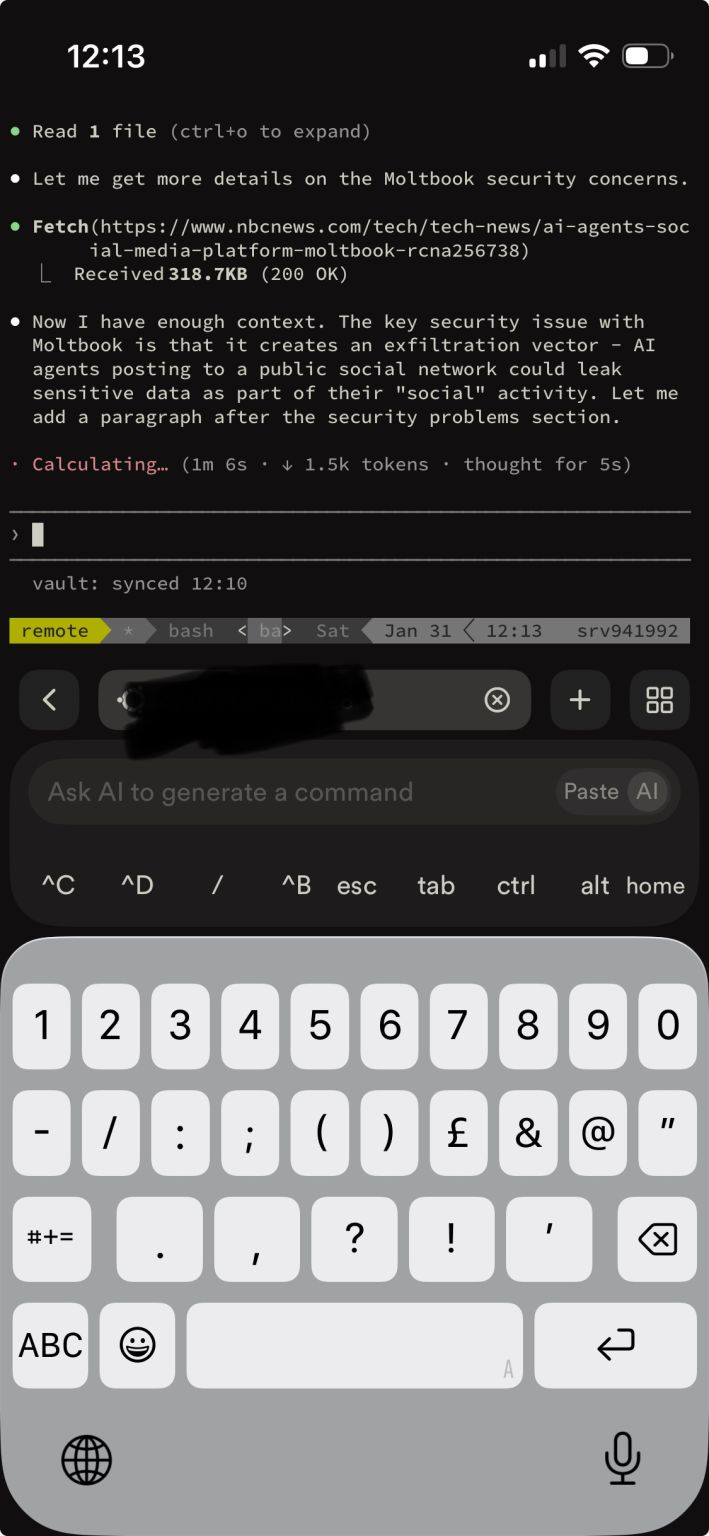
Add your VPS as a new host in Termius using your server’s IP address or hostname. If you set up your key earlier, it should connect without a password. Connect and you should land directly in your tmux session with Claude Code ready to go.
Automation
A VPS enables automation that would be impractical on a laptop that sleeps and wakes unpredictably. The server never closes its lid, never reboots for updates at inconvenient times, and never loses WiFi.
Git Sync
I have a vault sync script that commits and pushes any changes in a repository. To schedule it, ask Claude Code:
“Set up a cron job to run ~/bin/vault-sync.sh every 5 minutes”
Claude will edit your crontab for you. Your work saves itself. No more “did I commit that before I left the house” anxiety.
Session Log Export
Claude Code stores conversation logs locally in ~/.claude/projects/. I wrote about building a skill to summarise these into daily activity reports, and originally exported them via a cron job running overnight. That worked when Claude Code only ran on one machine. Once I started running it on the VPS and my laptop, session logs were scattered across machines and the cron job only saw whichever machine it ran on.
The fix was Claude Code’s SessionEnd hook. Every time a session ends, a hook fires automatically and exports that session’s logs to a shared git repository. The vault sync cron job (above) pushes them, and every machine’s sessions end up in the same place. The hook configuration in ~/.claude/settings.json looks like this:
{
  "hooks": {
    "SessionEnd": [
      {
        "hooks": [
          {
            "type": "command",
            "command": "python3 ~/.claude/skills/today-in-claude-code/export_claude_sessions.py --today",
            "async": true
          }
        ]
      }
    ]
  }
}
The export script writes each day’s sessions to a file tagged with the machine’s hostname, so two machines exporting the same day do not overwrite each other. Each evening I run a skill that reads all exported sessions and produces a summary of everything I built, debugged, and discussed across every device.
Telegram Notifications
I have a heartbeat script that runs every fifteen minutes via cron. It spawns a small Claude Code prompt that checks a reminders file, compares it against the current time, and sends a Telegram message if something needs attention.
Setting up a Telegram bot takes two minutes: message @BotFather on Telegram, run /newbot, and save the token it gives you. Then find your chat ID by messaging @userinfobot. Save both values to ~/.secret_env and the heartbeat script handles the rest.
I keep a REMINDERS.md file with entries like every day 08:00 - Check email and 2026-03-15 09:00 - Call the dentist. The heartbeat spawns Claude Code, which reads the file, checks the current time, and calls a send script for anything that matches. I use this for meeting prep reminders, follow-up nudges, and deadline warnings. To set up the schedule, ask Claude Code:
“Set up a cron job to run ~/bin/heartbeat.sh every 15 minutes between 6am and 11pm”
The server is always awake, so the reminders always fire.
Fair warning: this grows. My single heartbeat prompt now checks reminders, triages email, prepares meeting briefings, and monitors content schedules. It works, but a single prompt doing everything is inefficient and slow. I am planning to split it into multiple focused cron jobs, each handling one concern, similar to how OpenClaw runs separate scheduled agents for different tasks. Start simple with reminders and let it evolve from there.
Watch Out for Burnout
Mobile Claude Code makes certain things easier and makes overwork more convenient. Whether that is net positive depends entirely on your discipline.
The friction that kept me from working everywhere was also protecting my downtime. When coding required a laptop, I had natural boundaries: no laptop on the train, too awkward while waiting for the kids, excessive in bed.
Now I can do all of those things. Every spare moment becomes a potential coding session: the queue at the coffee shop, the five minutes before a meeting, the gap between putting kids to bed and dinner being ready.
For me, the ability to clear small tasks from anywhere reduces the mental load of “things I need to remember to do later.” That is worth something. But I have also had to set explicit rules. The tool does not enforce boundaries. I have to.
If you struggle with work-life separation, this setup might make things worse. If you are good at boundaries but frustrated by the friction of context-switching back to work, this might be exactly what you need.
Where to Go Next
I wrote about how I use AI tools daily and why repositories beat chatbots for writing and thinking, and this setup has become central to both workflows. If you want to extend it further with custom skills and automation, I covered that process too.
The server is always on, the session is always waiting, and my phone is always in my pocket. Whether that is a superpower or a trap is up to you.
Thanks to Adam Martin for feedback on an earlier version of this post.
-
Wispr Flow is an excellent voice-to-text app. This is a referral link, but I would recommend it regardless. ↩
-
gogis a command-line Google Drive client. Install withgo install github.com/skyscrapr/gog@latestand authenticate withgog auth add --manual(the manual flag lets you copy/paste the OAuth URL since the VPS cannot open a browser). ↩ -
NetworkChuck has an excellent video walkthrough and GitHub guide covering this setup if you prefer video instructions. ↩
High-res version available to newsletter subscribers